Everything you need to go from a blank requirement to a fully evidenced, executed test suite.
Introduction
What QAlchemy is, and the problem it solves.
QAlchemy takes a user story and acceptance criteria and turns it into a complete QA analysis in a single AI request. See Generate Test Cases below for exactly what comes back.
From there, the same suite can be organized, exported to the format your team uses, executed with real Pass/Fail tracking, tracked for trends and risk, and backed by attached evidence, so a completed test run is a defensible record, not just a checkbox.
QAlchemy is a desktop-first workspace. Your requirements, generated suites, execution history, and evidence stay in a local workspace on your machine.
Launch it. QAlchemy sets up your local workspace automatically, with no external database or account required.
Complete the one-time setup screen to connect an AI provider (see below).
Connecting an AI Provider
QAlchemy is bring-your-own-key: it never bundles or resells model access.
Open Settings → AI Provider and choose one:
Anthropic (Claude): a strong default for the generation pipeline.
OpenAI: GPT-family models via your own API key.
Google Gemini: via your own API key.
Ollama: point at a local Ollama server for fully offline, self-hosted generation.
Keys are stored locally on your device and are sent only to the provider you selected, never anywhere else.
1. Generate Test Cases
From requirement to structured QA analysis in one request.
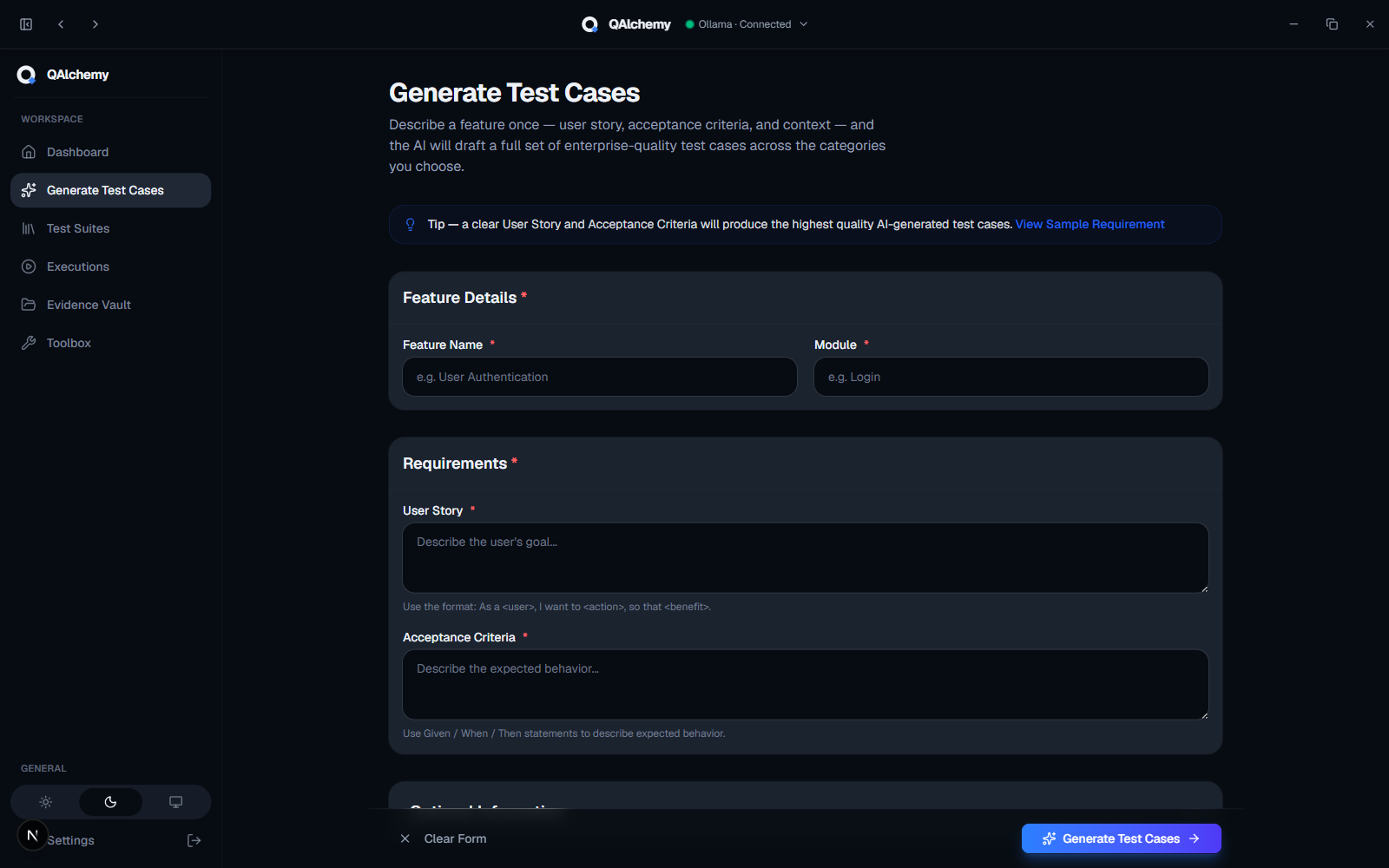
Open Generate Test Cases.
Provide your user story and acceptance criteria: plain text is fine, or import a story directly from Jira, Azure DevOps, GitHub Issues, or Trello (connect a provider once in Settings, then search and pick a story to pre-fill the form).
Choose an output format: Classic (structured steps/expected results) or Gherkin/BDD (Given/When/Then).
Select which testing categories apply: functional, negative, boundary, security, accessibility, and more.
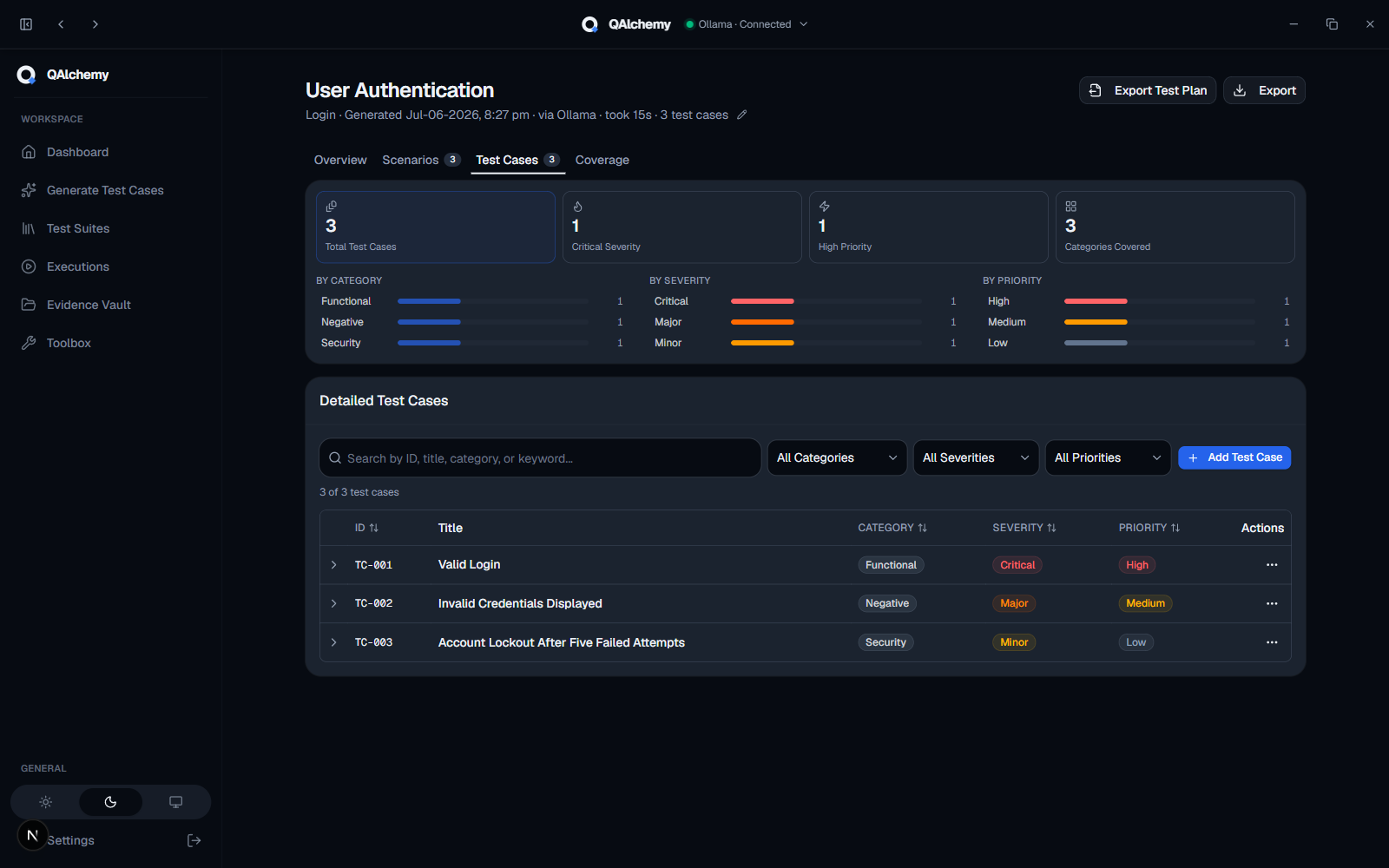
Generate. QAlchemy returns a requirement summary, business rules, risk assessment, scenarios/cases, and a traceability matrix.
Narrower, well-scoped acceptance criteria produce tighter, more relevant suites than a vague one-line story.
Reasoning and criteria behind generation
Generation follows a fixed rubric rather than a freeform prompt, so the same requirement produces consistently structured coverage:
Test design techniques: Boundary Value Analysis, Equivalence Partitioning, Decision Table Testing, State Transition Testing, Error Guessing, and Risk-Based prioritization are applied wherever they genuinely fit the requirement, not forced onto every case.
Fixed category definitions: Functional, Negative, Boundary, Validation, API, UI, Integration, Regression, Security, Accessibility, and Exploratory each have a precise, non-overlapping meaning. For example, Negative covers wrong credentials and unauthorized actions, while field-level input rules (blank, format, length) are Validation, a distinct category kept separate so coverage doesn't blur between the two.
Required-field validation: when Validation is requested, every required input field the requirement mentions gets its own blank/required-field case, kept distinct from that same field's format or length checks, since each fails independently with its own error message.
Priority vs. severity are judged as two independent axes, not one scale. Severity is the consequence if the underlying defect exists in production (Critical, Major, Minor, or Trivial); priority is how urgently that specific case should be run (High, Medium, or Low). A cosmetic bug on a page every user sees can be High priority but Minor severity; a rare data-corruption edge case can be Low priority but Critical severity.
Automation candidates are flagged true only when a case is deterministic (the same input always produces the same verifiable output), repeatable without human judgment, and tests a stable surface. Exploratory, visually subjective, or timing-dependent cases are flagged false.
Traceability is built against your acceptance criteria as an explicit checklist: every criterion gets exactly one entry, and a test case only counts as covering it if its expected results directly prove that exact claim, not just something in the same feature or flow.
Gaps and risks are scoped to the requirement in front of it: open questions are limited to what would materially change the test cases (no speculative enterprise concerns invented out of thin air), and each relevant risk area gets a likelihood, an impact, and a concrete mitigation rather than a generic warning.
2. Manage Test Suites
Review, edit, and clean up generated coverage before it ships.
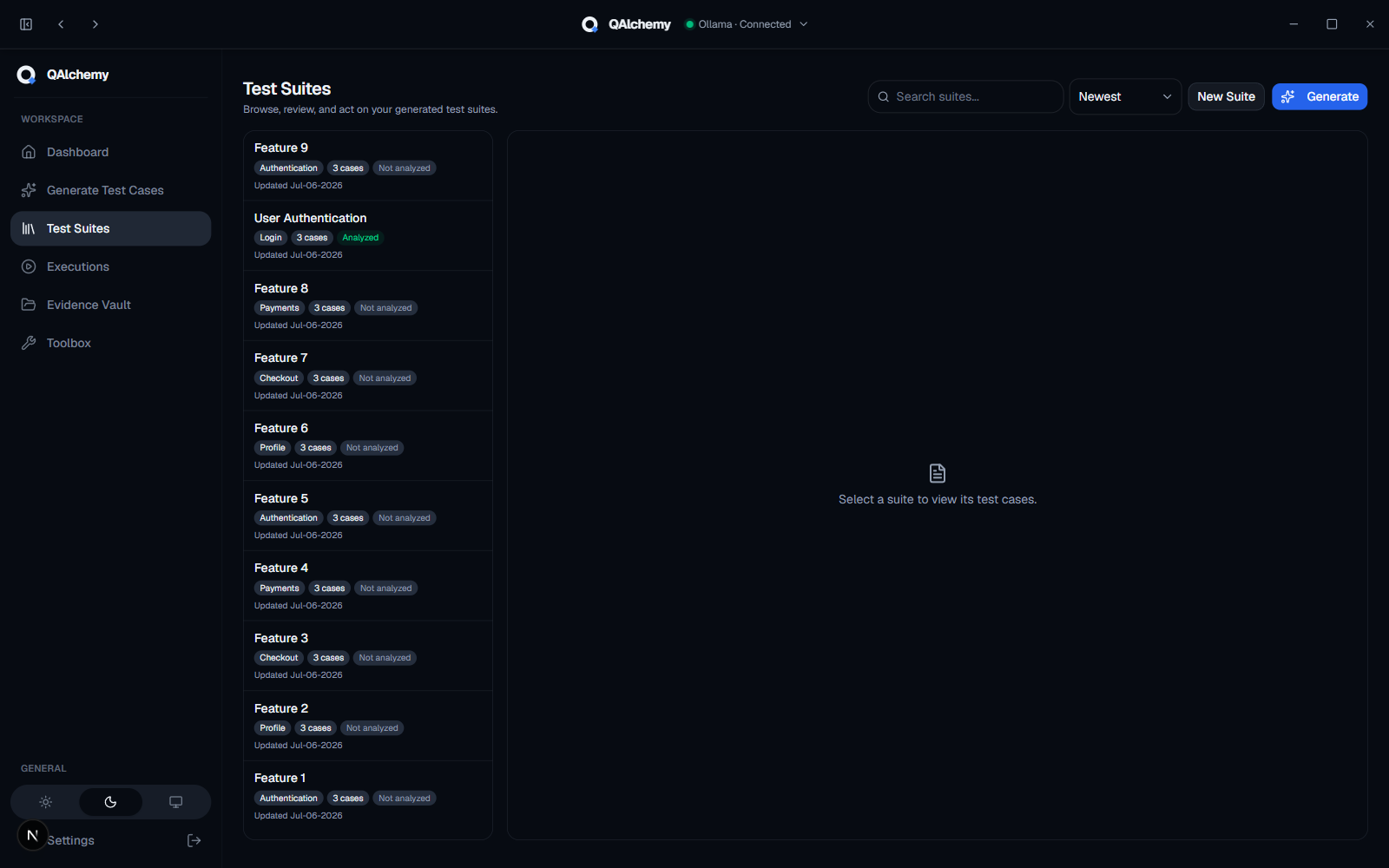
Browse and edit generated suites in one workspace.
Run AI Insights to flag likely duplicate cases and coverage gaps.
Run Optimize Suite to review AI-suggested test case improvements and approve or decline each one individually.
Run Review Accuracy to have AI check generated cases against the original requirement for correctness.
Use bulk actions to re-categorize, re-prioritize, or delete multiple cases at once.
Reorder cases to match your preferred execution order.
Deleted a suite by mistake? Restore it from the Recycle Bin within 30 days.
3. Export
Get your suite into the tools your team already uses.
From any suite, choose Export and pick a format:
Excel: full suite with categories, priority, and steps.
Azure DevOps: column mapping ready for direct import.
Jira / Xray: compatible with Xray test case import.
TestRail
Markdown and CSV: for docs or spreadsheet tools.
JSON: for custom pipelines.
PDF Test Plan: a formatted, shareable document.
4. Execute Suites
Turn a generated suite into a real, trackable test run.
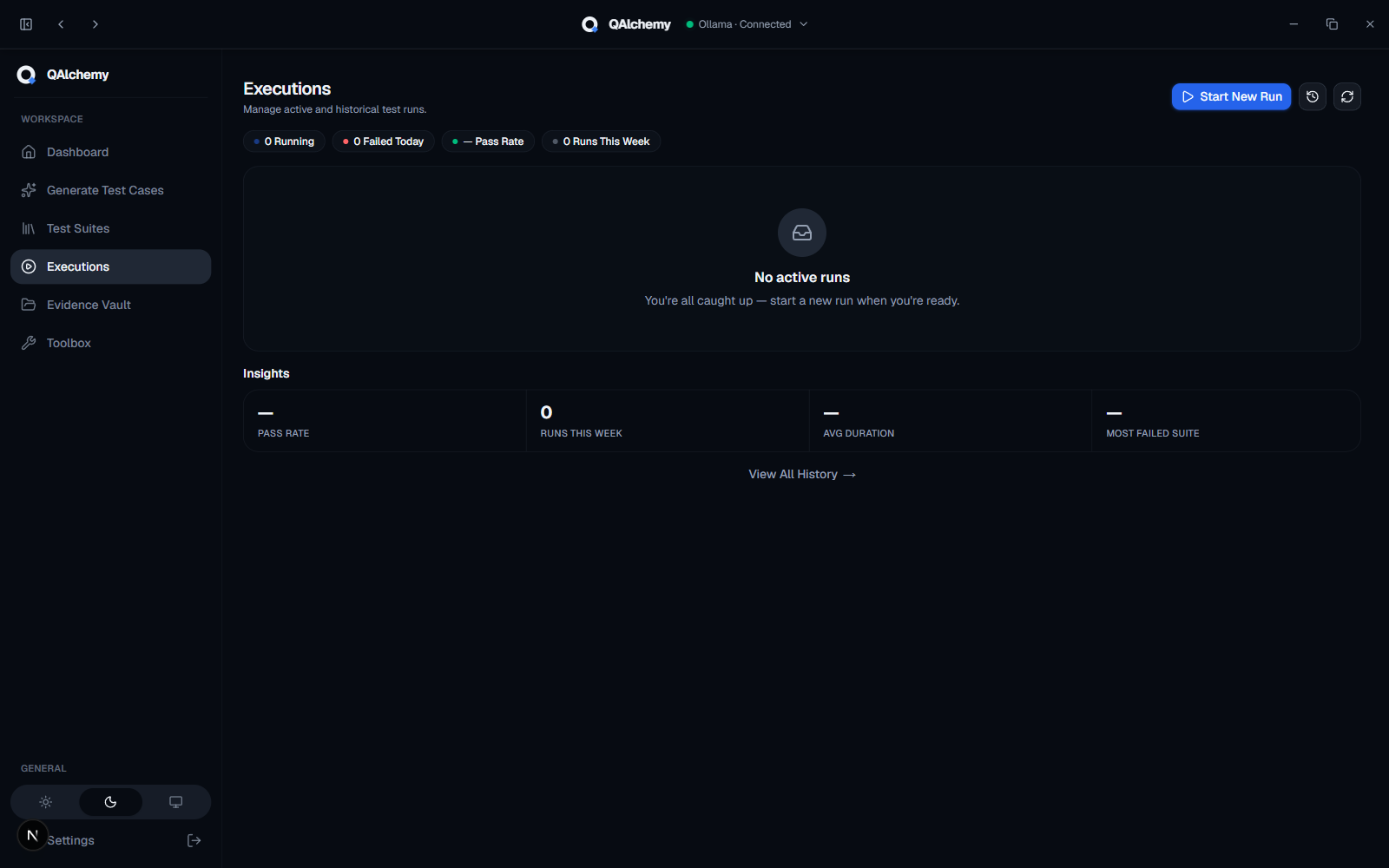
Open Executions and start a new run.
Pick the suite to execute and fill in environment, build, and tester details.
Work through each case, marking it Pass, Fail, Blocked, or No Run.
Track progress live: pass rate, blockers, and cases remaining.
Reopen any completed run later to add notes or re-verify a fix.
Beyond running a suite, Executions also gives you:
File Bug Report: on a failed case, AI drafts the title, repro steps, and expected/actual results, checks for likely duplicate tickets, then files straight to Jira, Azure DevOps, GitHub, or Trello with evidence attached.
Trends: pass rate charted across every completed run per suite, with tests that flip between pass and fail flagged as Flaky automatically.
Defects Dashboard: every bug filed from a failed execution, rolled up across suites with totals, a filing trend, and breakdowns by suite and severity.
Risk Dashboard: test cases ranked by severity, priority, and failure history, plus a Risk by Feature heatmap, so you know what to test first.
5. Evidence Vault
Attach proof of testing so a "Pass" is backed by something concrete.
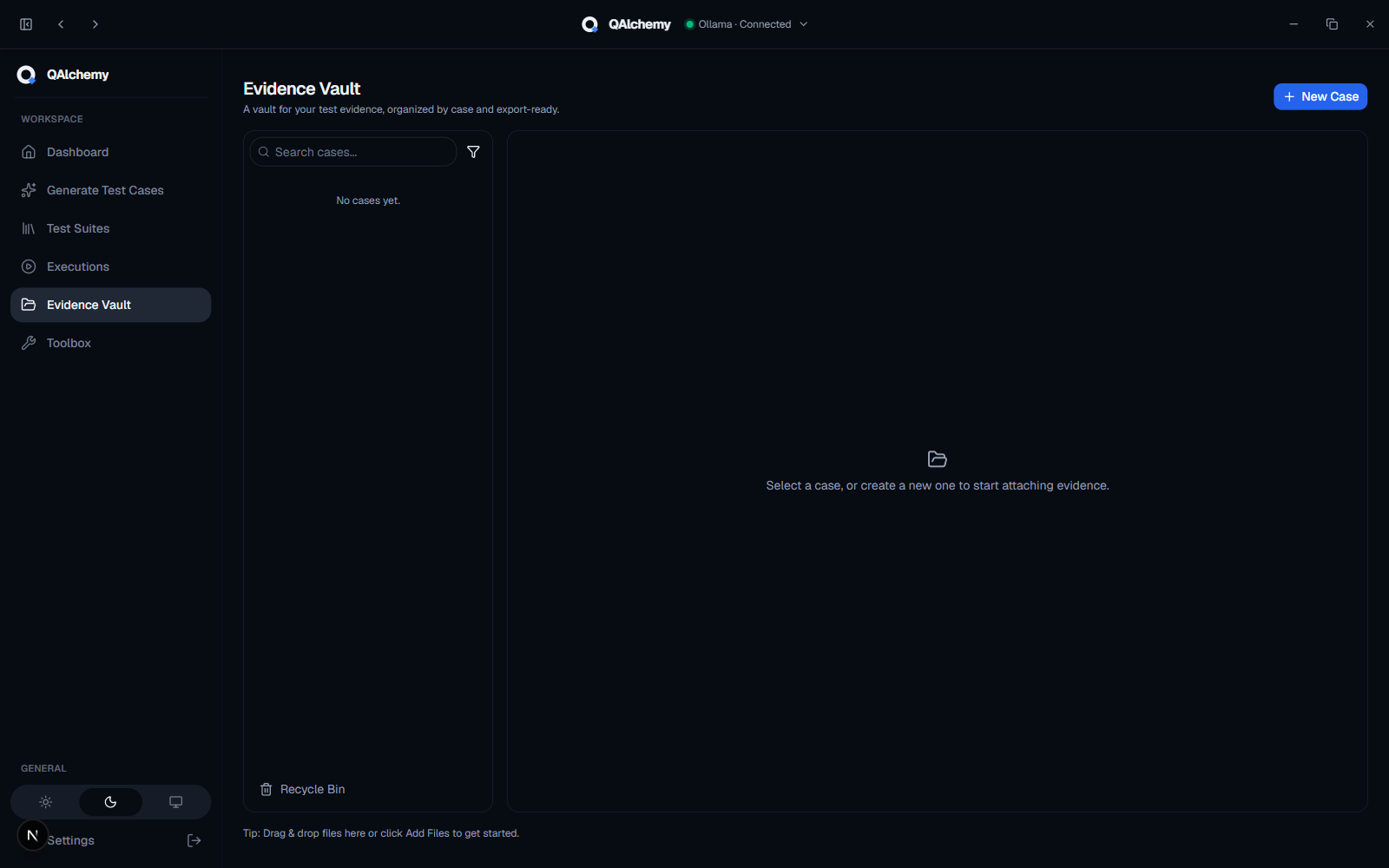
Open the Evidence Vault and create a case, a named container for related evidence rather than a folder.
Pin frequently used cases to the top.
Attach screenshots, screen recordings, or documents as you test.
Preview, zoom, rotate, and download evidence directly from the vault.
6. Kanban Board
Track internal QA task notes and progress that don't belong in a generated suite.
Open Kanban and add a task to To Do, In Progress, or Done.
Set a priority, add free-form labels, and an optional due date (flagged once overdue).
Drag a task between columns to update its status, or use search to find one by title, notes, or label.
Click Summarize for an AI-generated overview of what's currently on the board.
Deleting a task moves it to the board's Recycle Bin, kept for 30 days before permanent removal.
The Kanban board is stored locally in your browser rather than the rest of your synced workspace, so it doesn't carry over between devices and isn't included in Backup & Restore.
7. Knowledge Hub
A searchable knowledge base for everything that isn't a test case: business rules, API docs, SQL snippets, environment setup, known issues, runbooks, and more.
Open Knowledge Hub: a single navigation tree on the left (search, All Articles, Pinned, then your categories with articles nested directly underneath) next to the Markdown editor.
Search (or press Ctrl+K) matches article titles, tags, categories, and content, auto-expanding any category with a match.
Pin articles you reference constantly so they sit above the category tree.
Hover the ⋯ menu on a category to create an article inside it, rename it, or delete it; do the same on an article to rename, duplicate, move it to another category, pin it, or delete it.
The editor has a full Markdown toolbar (headings, lists, task checklists, tables, code blocks with syntax highlighting, images, links) with Edit/Split/Preview modes, autosave, and file attachments you can view or download directly.
Deleted articles go to the Archive for 30 days before permanent removal.
Knowledge Hub persists to your synced workspace, so unlike Kanban it's included in Backup & Restore.
QA Toolbox Reference
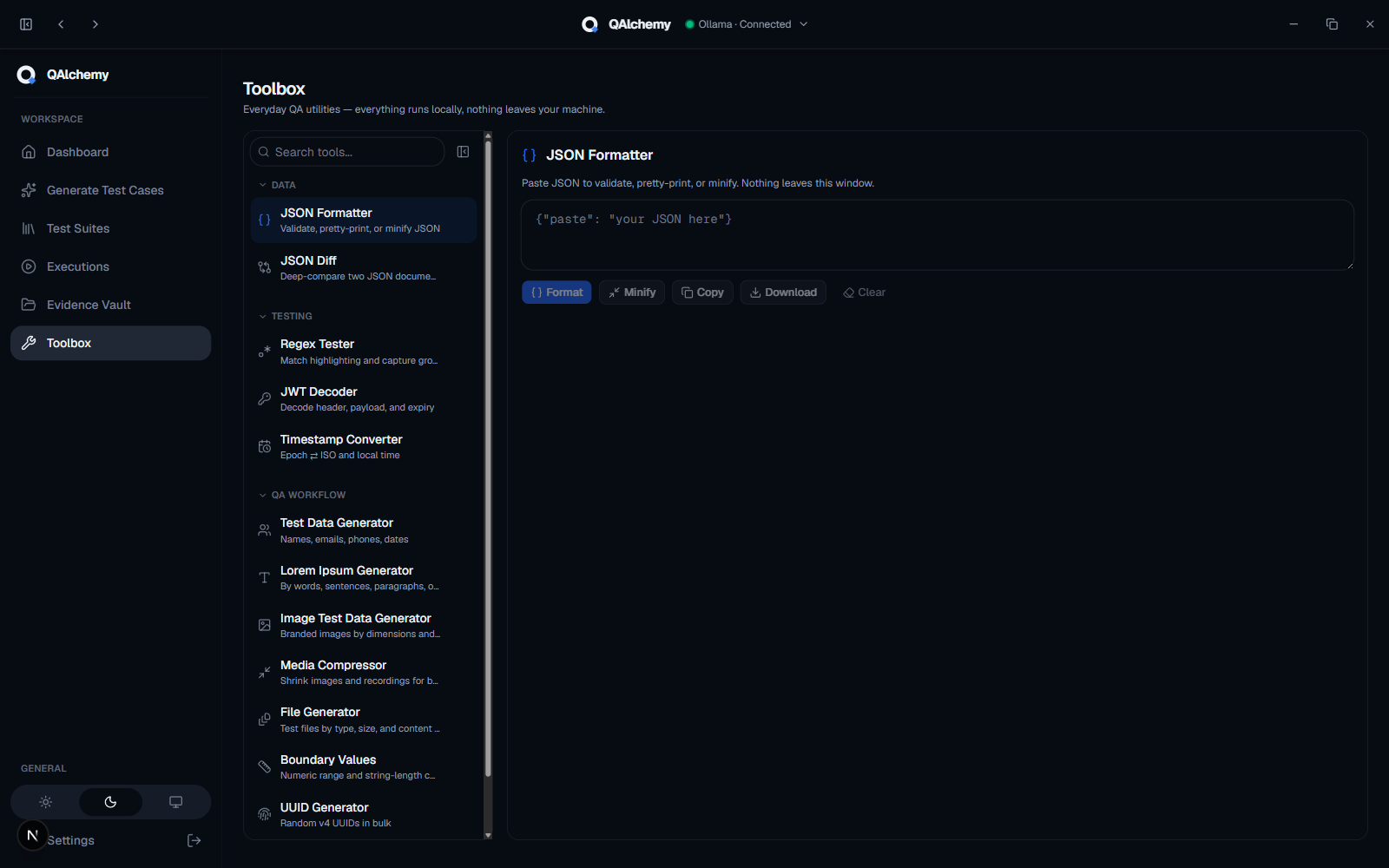
Offline utilities that make no AI calls and no network round-trip.
JSON Formatter / Diff: pretty-print, validate, and diff two JSON payloads.
Regex Tester: live match highlighting against sample text.
JWT Decoder: inspect header/payload without sending the token anywhere.
Timestamp Converter: Unix, ISO 8601, and locale formats.
Test Data Generator: names, emails, addresses, and structured records.
Lorem Ipsum Generator: placeholder text by words, sentences, paragraphs, or character count.
Image Test Data Generator: branded placeholder images by dimensions and file size.
Boundary Values Generator: min/max/edge values for a given data type.
UUID Generator: v4 UUIDs, single or bulk.
Bug Report Template: a structured starting point for consistent bug reports.
File Generator: dummy files of a given type and size for upload/limit testing.
Media Compressor: local image/video compression; nothing uploads.
Alarm: set a time and get a loud alert with an on-screen banner no matter which page you're on.
Backup & Restore
Your workspace, protected on your own terms.
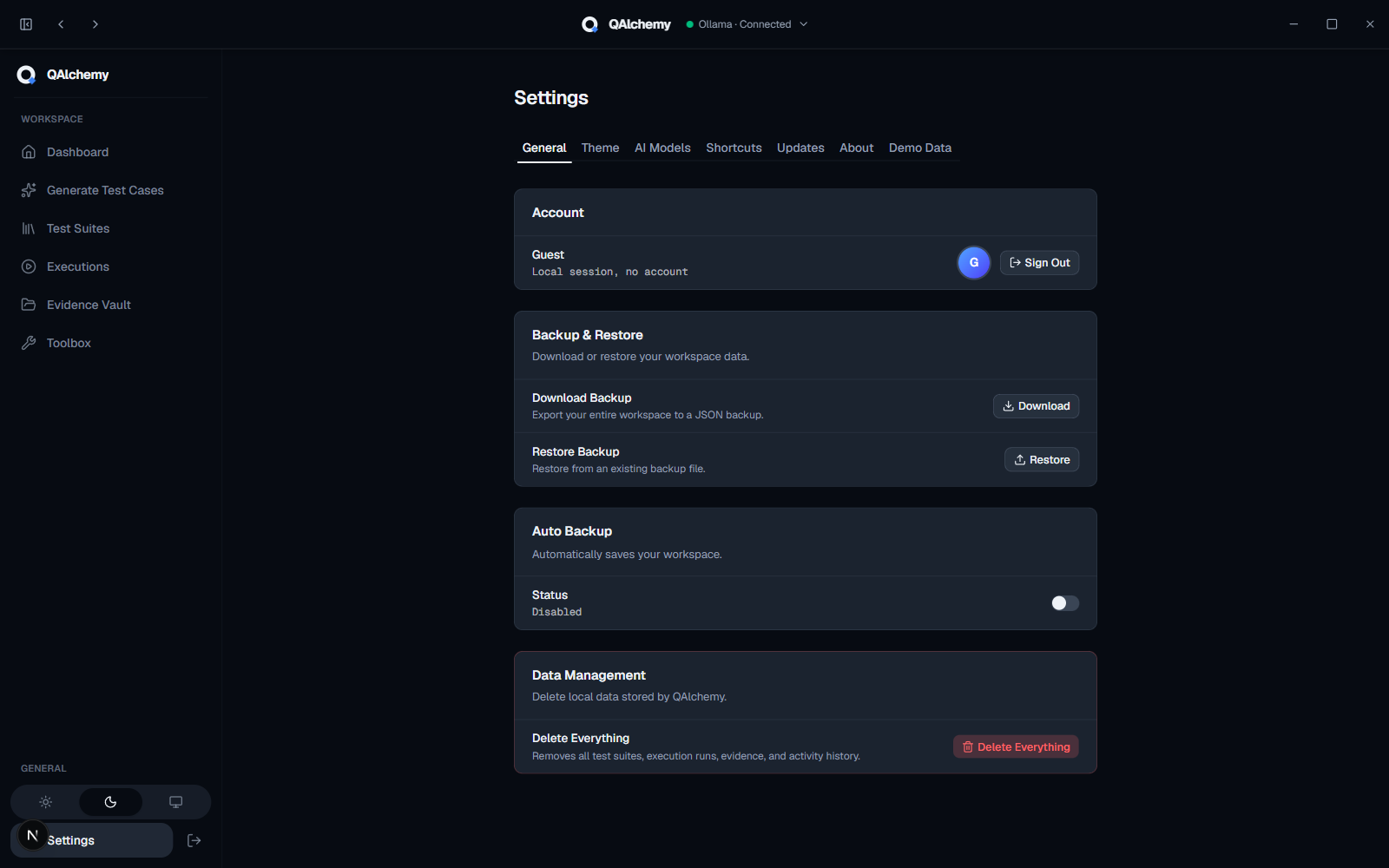
Download a full backup of your workspace on demand, or turn on auto-backup to a folder of your choice at a set interval. Restore from any backup file at any time. Backups never include your AI provider keys.
FAQ & Troubleshooting
Does my data leave my machine?
Your suites, runs, and evidence stay in your local workspace. The only outbound traffic is the requirement text sent to whichever AI provider you configured, using your own key.
Can I use QAlchemy without an internet connection?
The QA Toolbox works fully offline. Generation requires a connection to your chosen AI provider, unless you're running a local Ollama server.
What if a generated suite needs adjusting?
Re-run Generate with more specific acceptance criteria, or edit the returned cases directly in Test Suites; nothing is locked after generation.
Can I import an existing suite instead of generating one?
Yes, import a suite from its JSON export via Test Suites, the one export format that round-trips with full fidelity.
 QAlchemy